How to Create a Professional Video Call Background at Home
Build a calm, credible camera view with controlled depth, light, storage and privacy instead of relying on virtual blur.
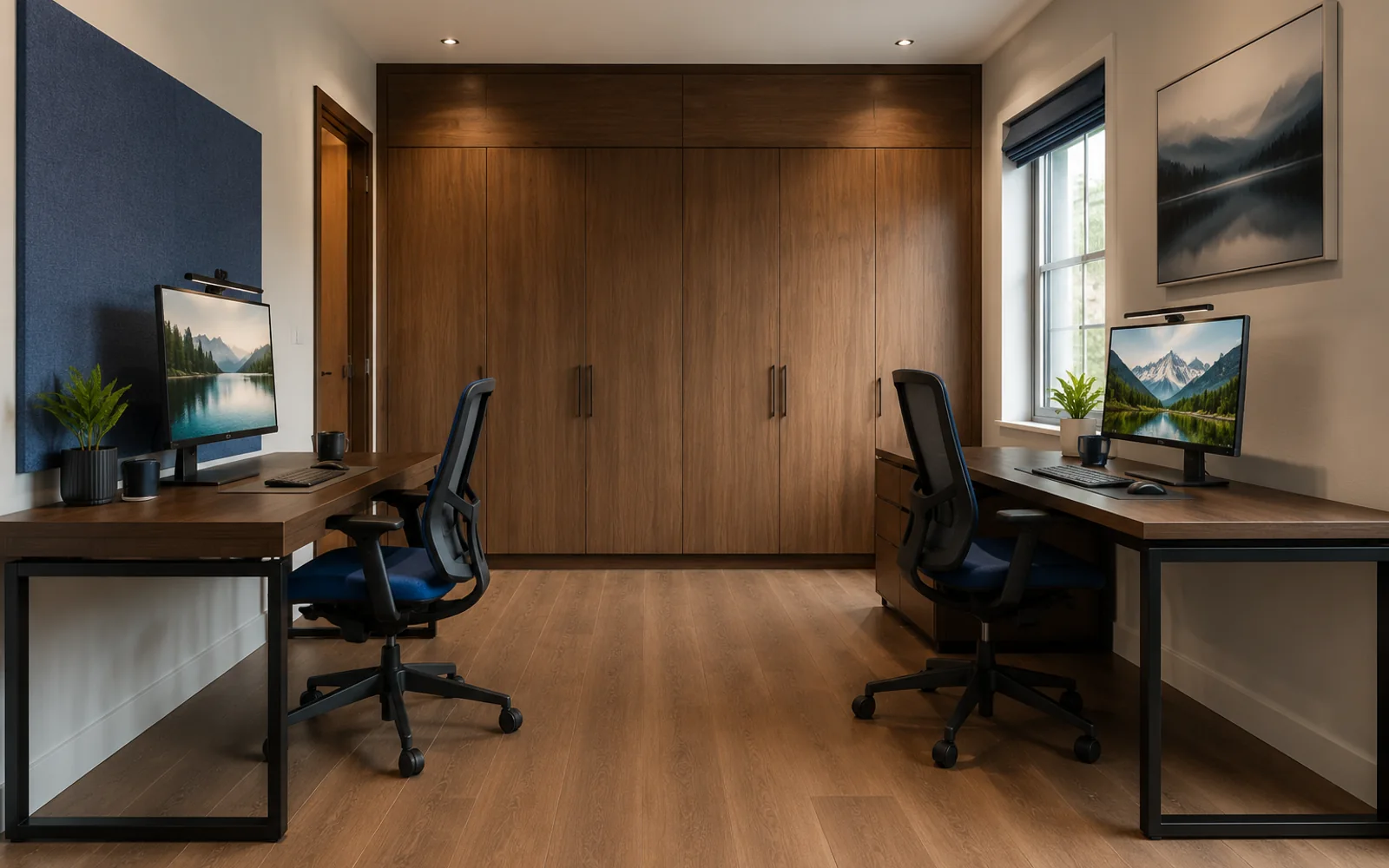
A professional video-call background needs three things: a stable light on your face, a deliberate wall or room zone behind you, and enough distance that the image has depth without exposing private clutter. It does not need to look like a studio. A simple cabinet, one plant or artwork, and a clean edge between work objects and household storage usually reads better than a shelf filled with decorative props.
Start with the camera direction
Open the actual meeting app and use its preview. Laptop cameras, external webcams and wide-angle lenses show different amounts of the room. Frame the view before buying shelves or moving furniture.
The camera should normally face a wall or controlled corner, not an open doorway, bright window or busy route. If the desk must face into the room, check what happens when somebody opens the door or walks behind the chair.
Put the brightest light in front or to the side
A window behind the chair creates backlighting: the camera exposes for the bright glass and darkens the face. Rotate the desk so the window sits in front of you or about 45 degrees to one side. Add a soft task or video light when daylight changes throughout the day.
Avoid a single bright ceiling downlight directly above the head. It produces deep eye shadows and makes the background look disconnected from the face. A weaker background lamp can add depth, but it should not become a bright spot beside the head.
Use depth deliberately
Leave some distance between the chair and the background when possible. Even 90–150 cm can make a wall, cabinet or plant feel like part of a room rather than a flat backdrop. Keep high-contrast objects away from the edge of the head and shoulders.
Closed storage is valuable when the room serves several purposes. It keeps work equipment accessible without making every call a view of cables, files and packaging. If open shelves are necessary, leave negative space instead of filling every compartment.
Check privacy and sound
Remove family documents, address labels, calendars and reflective surfaces that may reveal information. A rug, curtain and upholstered chair can reduce echo. Virtual blur is useful as a backup, but it can break around hair, glasses and moving hands; a controlled real background is more reliable.
The home office for two page is useful when two people need separate camera directions. Its featured shared-office example shows how workstation separation and a calm background can be evaluated together.
Use the AI home office design tool and include call frequency, camera direction and anything that must remain in the room. Choose HD Render when you need to see the visual background; choose Concept Layout when the unresolved problem is desk direction and distance from the wall. Verify the real camera preview before treating any visual concept as finished.
Reviewed 17 July 2026. No virtual or generated image can replace a privacy check in the actual camera view.